
PREPARE TABS BEFORE UPLOAD
UPLOAD TABS GUIDELINES
Our system currently supports GUITAR PRO 7 and 8 file versions. The system will convert the same audio quality to MP3 for use in the project mixer. In accordance with our system requirements, please follow the guidelines below to make some modifications to the TABS before uploading them. This will help ensure consistent volume levels for all members. Thank you.
If you want to upload the tabs for PUBLIC use,
please follow the steps below before uploading the file!
please follow the steps below before uploading the file!
1. TRACKS NAME
To facilitate easier editing and manipulation of the TABS by members, it is recommended to rename the track names with instrument names and avoid duplicate names to minimize confusion. For example, if there are two tracks named 'Distortion Guitar', you can identify them based on their purpose such as Fills / Solo / Rhythm / Lead / Left / Right, and rename them as Distortion Guitar Rhythm, Distortion Guitar Left, or Distortion Guitar Solo, etc.
IMPOTANT NOTE!!
**Temporarily know the places that will cause GP export wav error:
1. Never have tracks with the same name.
2. Make sure no space after the instrument name.
1. Never have tracks with the same name.
2. Make sure no space after the instrument name.
- Rename track names with instrument names.
- Avoid duplicate names to reduce confusion.
- Identify tracks based on their purpose (e.g., Fills, Solo, Rhythm, Lead, Left, Right).
- Modify track names accordingly (e.g., Distortion Guitar Rhythm, Distortion Guitar Left, Distortion Guitar Solo, etc.).
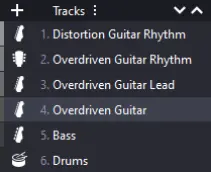
Suggested examples for naming, and feel free to customize other names if needed.
Vocal
Backing Vocals
Overdriven Guitar
Distortion Guitar
Acoustic Guitar
Electric Guitar
Stair
Bass
Drums
Percussion
Backing Vocals
Overdriven Guitar
Distortion Guitar
Acoustic Guitar
Electric Guitar
Stair
Bass
Drums
Percussion
Acoutsic Piano
Grand Piano
Electric Piano
Rhodes Piano
Rock Organ
Church Organ
Keyboard
Saxophone
Baritone Sax
Flute
Grand Piano
Electric Piano
Rhodes Piano
Rock Organ
Church Organ
Keyboard
Saxophone
Baritone Sax
Flute
Harmonica
Effect
FX
SynthStrings
SynthBass
Sythesizer
SynthBrass
Effect
FX
SynthStrings
SynthBass
Sythesizer
SynthBrass
+
Rhythm
Solo
Lead
Fills
Harmony
Distortion
Overdriven
Clean
Left
Right
Solo
Lead
Fills
Harmony
Distortion
Overdriven
Clean
Left
Right
=
Overdriven Guitar Rhythm
Overdriven Guitar Solo
Distortion Guitar Rhythm Left
Distortion Guitar Rhythm Right
Acoustic Guitar Intro
Acoutsic Piano Solo
Rhodes Piano Fills
Acoutsic Piano
Saxophone Lead
Drums
Overdriven Guitar Solo
Distortion Guitar Rhythm Left
Distortion Guitar Rhythm Right
Acoustic Guitar Intro
Acoutsic Piano Solo
Rhodes Piano Fills
Acoutsic Piano
Saxophone Lead
Drums
2. NUMBER OF TRACKS
In JAMGATHER (PROJECTS MIXER), TABS serve the purpose of providing a shared click track for members to record or view chords. It's recommended to avoid excessive tracks in the TABS. Ideally, aim for a minimum of 1-5 tracks and a maximum of 8-9 tracks. If there are extra tracks that are not essential, like separating piano hands or multiple guitar or percussion tracks, consolidate them into a single track or remove them.
Although PROJECTS MIXER supports up to 20 tracks or more, for the convenience of all members, here are the main points regarding the purpose and recommended number of tracks for TABS in JAMGATHER (PROJECTS MIXER):
- Purpose of TABS in JAMGATHER:
- Provide a common click track for recording or viewing chords.
- Members can use each other's tracks and eventually delete the MIDI tracks. (Excludes practice loops)
- Recommend number of tracks:
- Minimum: VOCAL / BASS / GUITAR x 2 / DRUMS / PIANO (1-5 tracks).
- Maximum: 8-9 tracks.
- Simplify original TABS if they contain too many tracks.
- Handling additional tracks:
- Consolidate non-essential tracks into a single track if possible.
- Examples: combining left and right hand of the piano, reducing guitar tracks, or merging numerous percussion tracks.
- Delete unnecessary tracks.
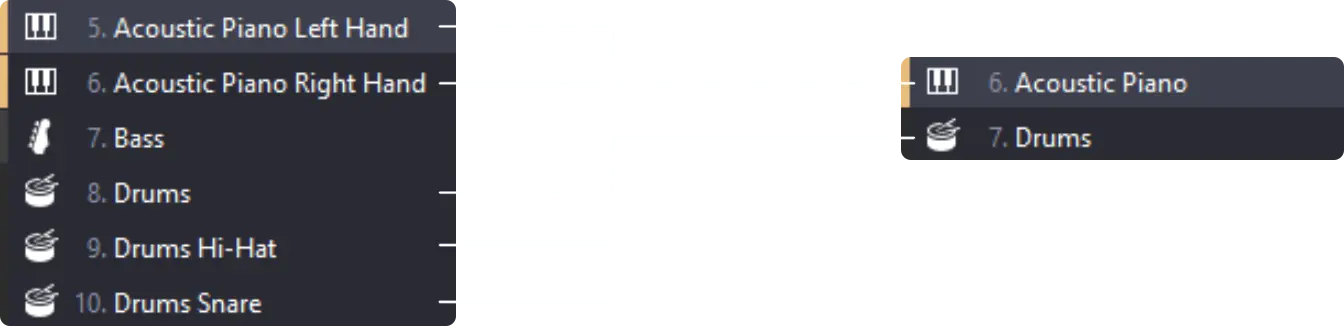
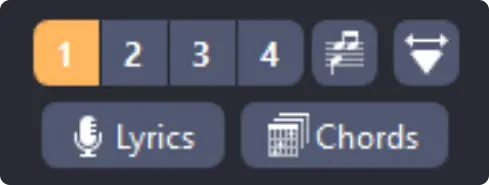
If necessary, you can use this tool to group tracks together based on similar sound effects.
Note: The focus is on keeping the number of tracks within a reasonable range and prioritizing essential elements for collaborative purposes.
3. VOLUME SETTING
Each TAB should have its volume adjusted to the maximum level because in PROJECT MIXER, we do not directly control the DB+/- values. When creating a project, it is best to lower the volume to an appropriate level. We will adjust the original highest volume tracks proportionally to prevent clipping (distorted sound). Please note that Guitar Pro playback issues causing minor clipping will not result in clipping within PROJECT MIXER.
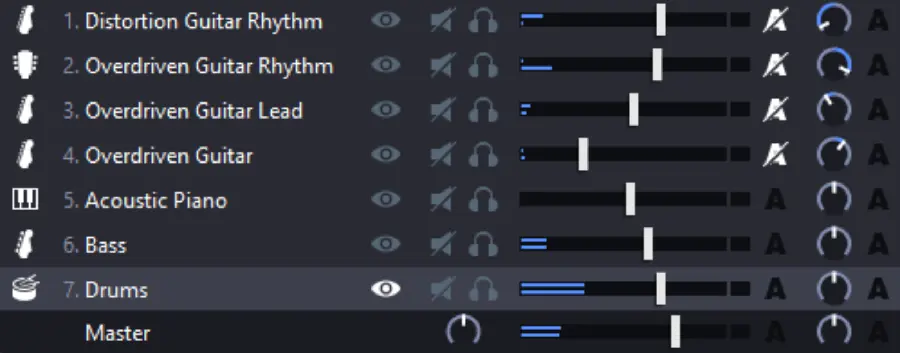
The Master Volume must be set to 0dB, you can see that the drum track is the loudest. We will use this track as a reference and start by reducing the volume of the drum track to its lowest level.
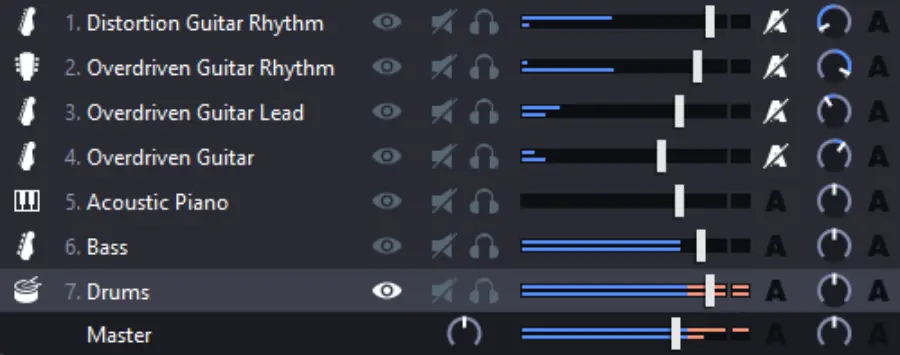
Adjust the tracks proportionally to maximum volume. If any individual track is too quiet, you can raise its volume appropriately. As long as there is no clipping audible & occasional glimpses of red volume are acceptable.
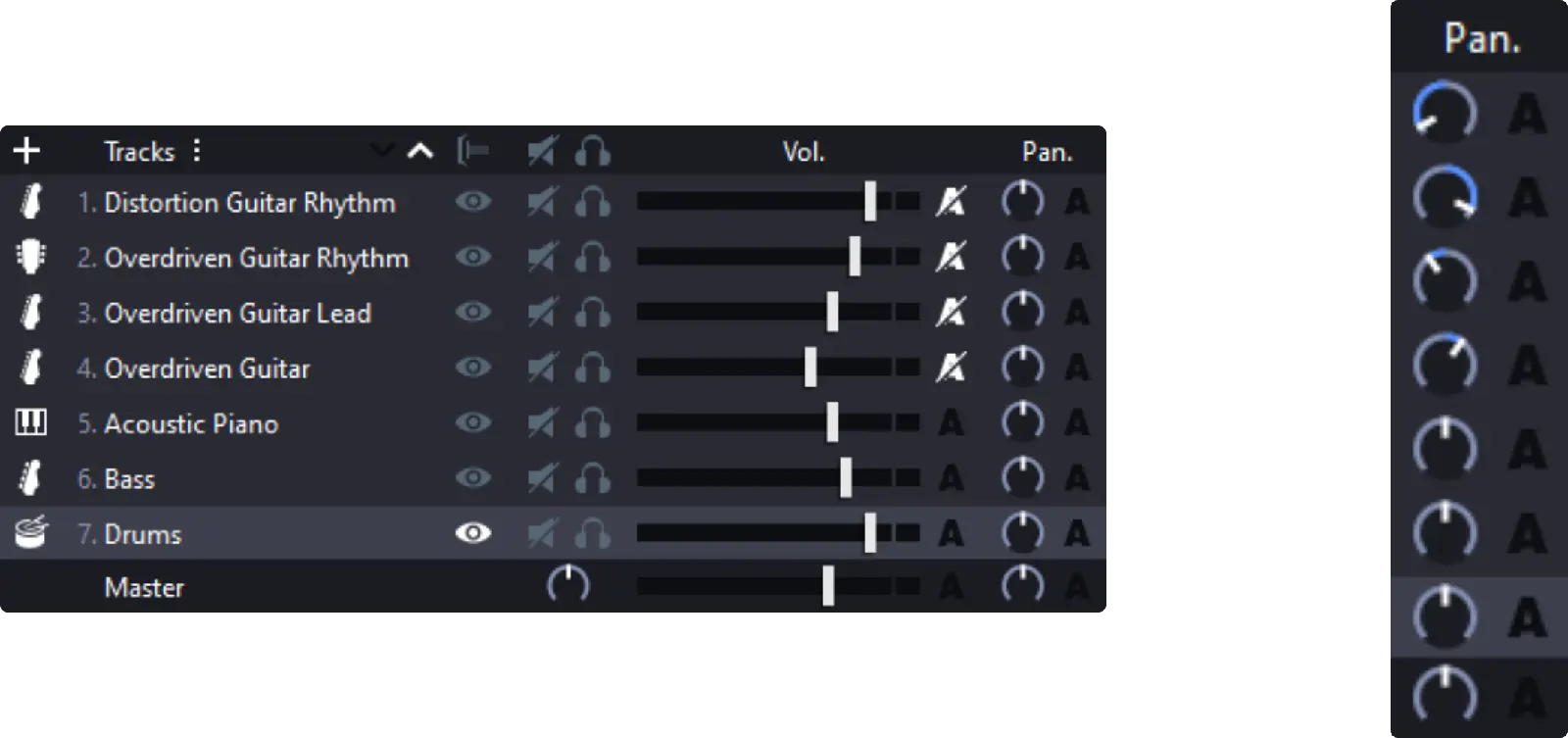
If multiple tracks have their panning set to the center for both left and right channels, you can try separating them to different positions on the left and right. This can enhance the clarity of various instruments. However, unless necessary, it is recommended to keep vocals, bass, and drums centered.
4. UPLOAD TABS: ADD A BAR OF THE BEGGING OF TABS
When you start recording, it is necessary to add an extra bar at the beginning of the musical piece to sync with the BPM. Therefore, in the UPLOAD TABS interface, you will find an option called ADD A BAR AT THE BEGINNING OF TABS. This option determines whether the server should add an additional bar at the beginning.
There are a few things you need to determine:
- Starting position of the sound.
- BPM (Beats Per Minute).
- Whether manual addition of a 4-beat count-in is required at the beginning.

LET'S BEGIN WITH A SIMPLE EXAMPLE IN 4/4 TIME SIGNATURE.
The same applies to situations in 2/4, 3/4, 6/8 and 5/5 time signatures as well.
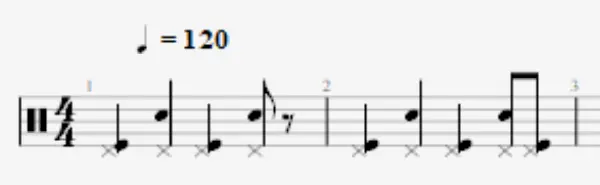
If there is an initial sound at the beginning, you should manually add an empty bar at the very front. You can either add it manually or set the 'ADD A BAR AT THE BEGINNING OF TABS' option to ON.
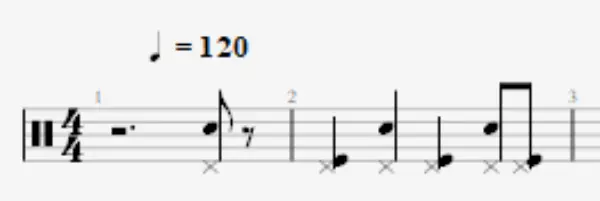
If the sound begins on the 3rd beat or later, there is no need to add an empty bar at the very front, as there is already a 3-beat countdown. In the 'ADD A BAR AT THE BEGINNING OF TABS' option, set it to OFF.
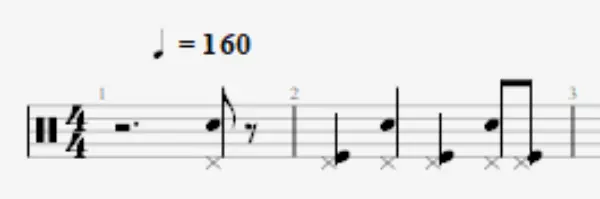
If the sound begins on the 3rd beat or later, but the BPM is higher than 160, it is necessary to add an empty bar at the very front. This allows sufficient time for preparation during recording at faster tempos. In the 'ADD A BAR AT THE BEGINNING OF TABS' option, set it to ON.
If the BPM is above 160, you can manually add two empty bars (optional) and set the 'ADD A BAR AT THE BEGINNING OF TABS' option to ON.
If the BPM is above 160, you can manually add two empty bars (optional) and set the 'ADD A BAR AT THE BEGINNING OF TABS' option to ON.
For time signatures that are not commonly used, such as 5/7, 7/8, 12/8, or others, and with a BPM below 160, it is recommended to add a 4/4 bar at the beginning and set the 'ADD A BAR AT THE BEGINNING OF TABS' option to OFF.
If the BPM is above 160, you can manually add two empty bars (optional) and set the 'ADD A BAR AT THE BEGINNING OF TABS' option to OFF
If all the above details have been confirmed, you can proceed to upload the file.
LAST UPDATE: 2025-01-10