
PROJECT MIXER AND PLAYLIST
MAIN FUNCTION AREA
PROJECT MIXER is one of the powerful features on our website, offering a variety of tools. Its primary function is as a multi-user online mixing and recording tool, allowing each member to record audio tracks and blend them with tracks contributed by other members. It also features loop display, track-based loop playback, fade in/out capabilities, and the ability to import Guitar Pro files. Furthermore, it supports custom TXT chord/tabs/lyrics. Additionally, it provides a playlist player for personalized track selection, promising hours of musical enjoyment!
Please note that to initiate a project in PROJECT MIXER, the server must first upload a GUITAR PRO file in the TABS UPLOAD section. The system will then automatically convert it into a mixer project. Afterward, members can enhance the project by adding additional TXT chord or lyric files. For information on how to upload Guitar Pro files and important considerations, please refer to the UPLOAD TABS section.
Please note that to initiate a project in PROJECT MIXER, the server must first upload a GUITAR PRO file in the TABS UPLOAD section. The system will then automatically convert it into a mixer project. Afterward, members can enhance the project by adding additional TXT chord or lyric files. For information on how to upload Guitar Pro files and important considerations, please refer to the UPLOAD TABS section.
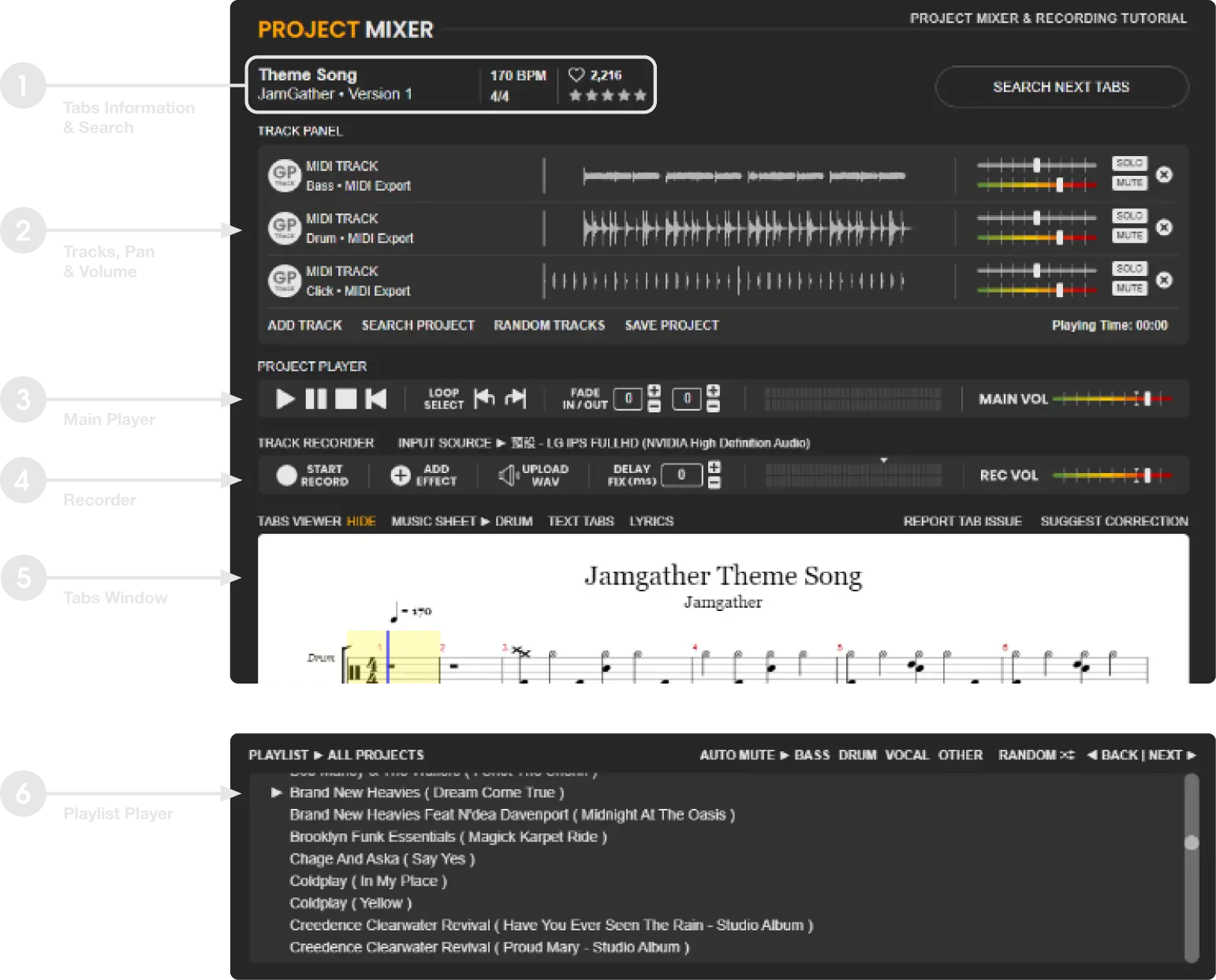
*The PLAYLIST window will only be visible when the PLAYLIST is running.*
 BASIC INFORMATION & SEARCH TABS
Welcome to the JAMGATHER music website (hereinafter referred to as the "Website" or "we"). We take your privacy very seriously, and this privacy policy is designed to help you understand comprehensively how we collect, use, disclose, and protect your personal information. To safeguard your rights, please read this policy carefully to fully understand our privacy practices.
1. Information We Collect
-
1.1 Registration Information:When you register as a user of JAMGATHER, we may collect the following registration information, including your username, email address, and password. This information is necessary to ensure your access to our services.
-
1.2 Personal Information:You may choose to provide additional personal information to enhance your user experience. This information includes avatars and personal profiles, used to identify your personal image and allow other users to learn more about your musical preferences and background.
-
1.3 Music and Creative Information:When you upload music, songs, sheet music, or other creative content, we will store this information so that you can use our services.
-
1.4 Transaction Information:If you make payments to use our premium services, we may collect payment information, including credit card numbers and payment details. This information is used for payment processing and ensuring your access to the selected services.
-
1.5 Access Information:We automatically collect information about your visits to the Website, including IP addresses, browser types, visit times, and page browsing records. This information helps us analyze traffic and improve website performance.
-
1.6 Cookies and Similar Technologies:We use cookies and similar technologies to record your preferences, provide personalized content, and analyze website traffic. You can disable cookies in your browser, but this may affect your use of the Website.
 TRACK PANEL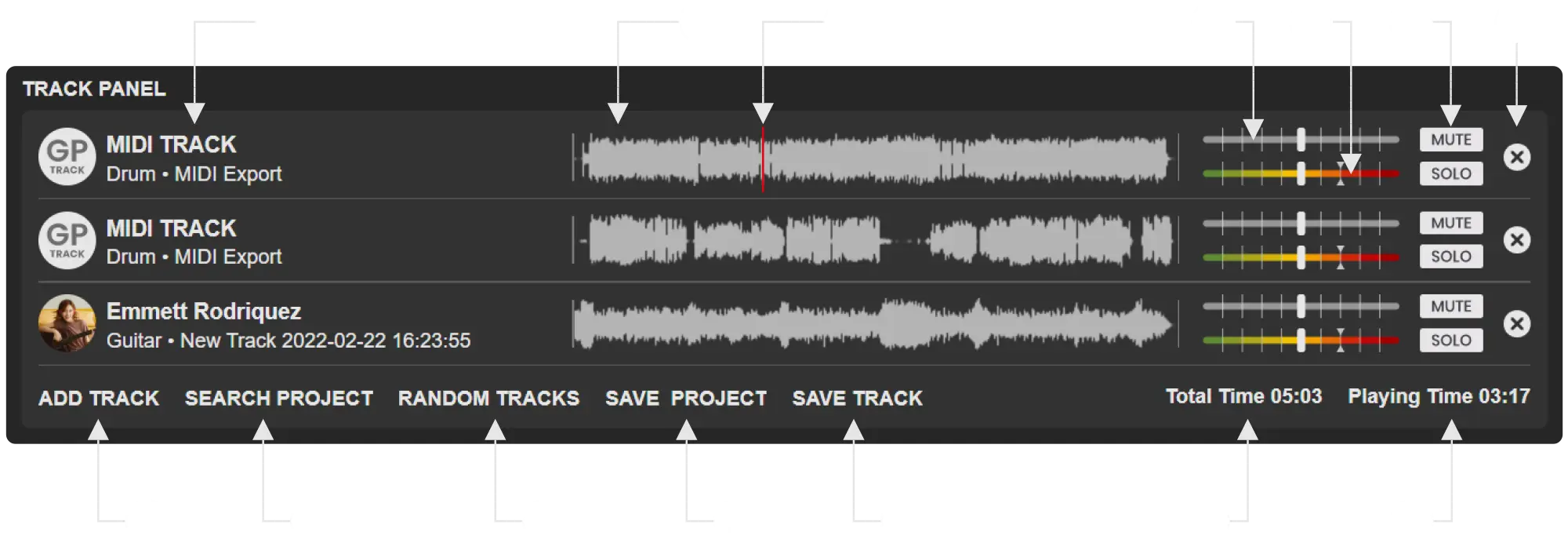
This looks like a simple synthesizer, but the best part is in the least noticeable place! When you find the TABS, there will be a default set of basic tracks converted from MIDI (TABS). When you press ADD TRACK, you can add tracks from other members and remove the original MIDI. You can then do some basic volume and panning settings and save it as your own PROJECT or share it. You can also use SEARCH PROJECT to find other users' compositions, or use "RANDOM TRACK" to randomly select tracks from different members for each instrument, allowing you to try out different combinations. If the TABS is too new and doesn't have tracks, you can use the recording position introduced below to create and share your own tracks.
- ARTIST NAME
- Shows as "GP TAB" means the base track was generated by MIDI (which can be replaced with other members' tracks using "item 8").
- Shows as the username and icon means it is a self-recorded track (which will show up after adding members' tracks using "item 8").
- P.S. A metronome track named "CLICK" will show up with the basic MIDI TRACKS.
- WAV TRACK PREVIEW - Total length of the WAV track
- STARTING TIME (FOR PROJECT PLAYER BAR)
- Click anywhere in the WAV track the orange line will jump to the position, starting playback from there.
 Play starting from the point of the orange line, single click on any point of the WAV track.
 Return the orange line to the starting point.
- LEFT RIGHT PAN

- Adjust audio to the left or right speaker.
- VOLUME

- Adjust the track's volume. The upper and lower triangle positions represent 85% volume.
- MUTE & SOLO - Click to turn the track ON / OFF.
- REMOVE TRACK - (You can add the track back in "item 8".)
- ADD TRACK
- Shows the tracks recorded by all members, including yours. Click to add the tracks to the TRACK PANEL.
- Change the settings when saving TRACKS, either to make them public or private. Public tracks can be seen by any member.
- SEARCH PROJECT - Search for all ready projects.
- RANDOM TRACKS - Add a few tracks (VOCAL / DRUMS / GUITAR / BASS / PIANO) randomly.
- SAVE PROJECTS - Save the existing TRACK PANEL as a PROJECT.
- SAVE TRACK - Save recording tracks to files.
- TOTAL TIMETotal length of the WAV track.
- PLAYING TIME
 PROJECT PLAYER
This is the play controller for all PROJECTS or TRACKS. You can use the LOOP SELECT to repeat a certain section of the play for practice purposes, or use FADE IN / OUT to gradually increase or decrease the volume of the song. Please note that when controlling or editing projects, the volume should be kept between 80-90% (above the white line) for the best playback quality.
- PLAY TRACKS
- PAUSE
- STOP PLAYING - Orange line (WAV panel) will jump to the current position, click again will return to the beginning.
- PLAY FROM START - Return orange line to the starting point and play.
- LOOP SELECT - Play a selected section repeatedly.
- Click
 to set a starting point on the WAV TRACK.
 - Click
 to set a ending point on the WAV TRACK.
 - Click
 to turn the LOOP on/off.
- Click
- FADE IN / OUT - Set volume fade in or fade out.
- Numbers on the left (in seconds) represent the time it takes for the volume to go from zero to normal.
- Numbers on the right (in seconds) represent the time it takes for the volume to go from normal to zero.
- 0 means no effect is added.
- MAIN VOLUME METER
- MAIN VOLUME ADJUST BAR
 TRACK RECORDER
TRACK RECORDER is used to record audio tracks. In addition to your own equipment, you can also use the REC VOL BAR to adjust the volume. However, when inputting, try to adjust the volume of your AUDIO INTERFACE to between 75-85% as indicated by the REC VOL. When you press START RECORD, the recording will start immediately. The score usually reserves 4 beats for you to count down. For more information on recording, please see RECORD TRACKS.
- START RECORD
- Click START RECORD to initiate recording and press PROJECT PLAYER STOP "
 " to cease.
 - Click START RECORD again to re-record and replace the previous recording.
- Click START RECORD to initiate recording and press PROJECT PLAYER STOP "
- ADD EFFECT
- Click to open the "EFFECT" sub-window. Select various EFFECT buttons to apply different sound effects.
- UPLOAD WAV
- Upload WAV files to the TRACK PANEL. WAV files can be created using various sound editing software.
- TABS can be found via SEARCH TABS and can be downloaded at PROJECT MIXER > TABS VIEWER.
- DELAY FIX(ms)
- Live recording may cause a delay due to various specifications.
- Delay can be adjusted using the "+" and "-" buttons or by typing a number in the input box.
- It can be tested by clicking TRACK of any song, please save after DELAY FIX has been completed.
- RECORD INPUT VOLUME METER
- RECORD VOLUME ADJUST BAR
 TABS VIEWER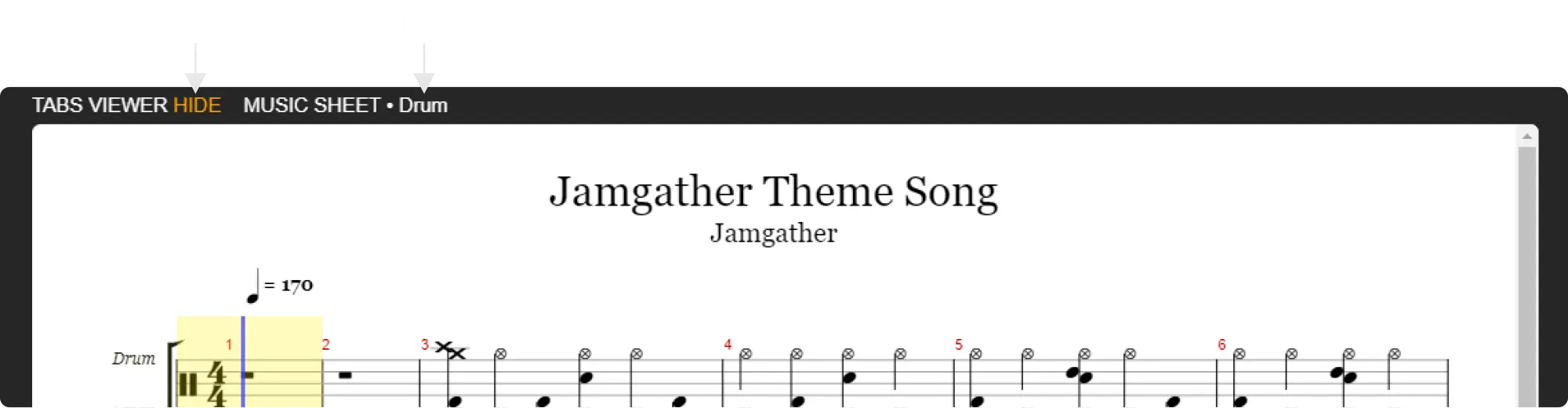
All TABS will automatically generate music sheets when entering the PROJECT MIXER. Item "2" corresponds to the existing MIDI TRACK music sheet. If you don't need to use it, you can also hide it in item "1".
 PLAYLIST PLAYER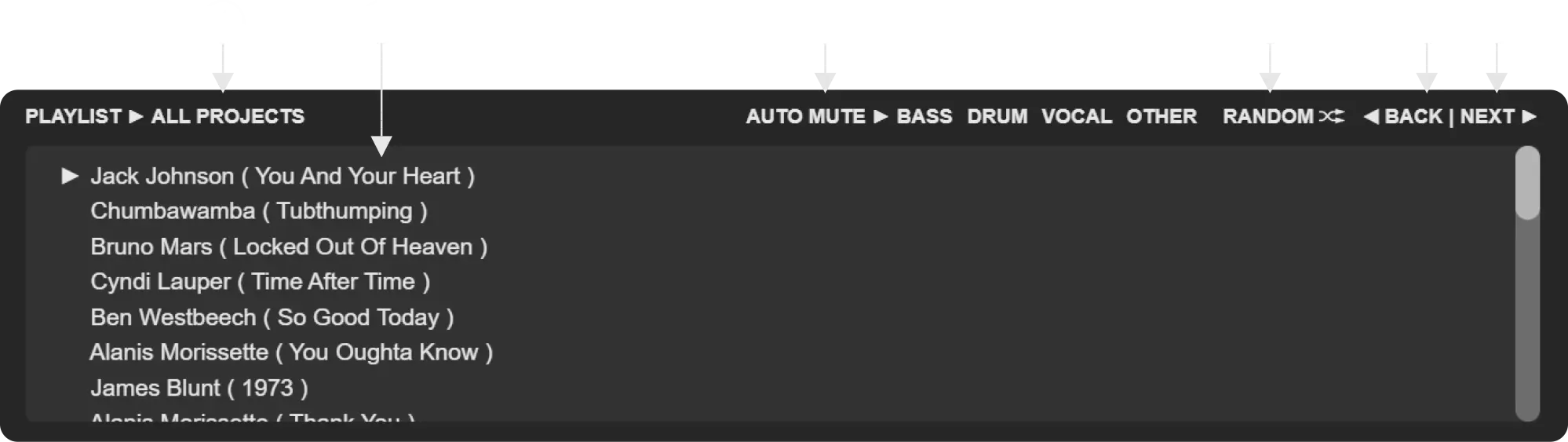
*PLAYLIST will only be displayed when you enter the playlist*
TRACK RECORDER is used to record audio tracks. In addition to your own equipment, you can also use the REC VOL BAR to adjust the volume. However, when inputting, try to adjust the volume of your AUDIO INTERFACE to between 75-85% as indicated by the REC VOL. When you press START RECORD, the recording will start immediately. The score usually reserves 4 beats for you to count down. For more information on recording, please see RECORD TRACKS.
- PLAYLIST - Currently Playing playlist name.
- PLAYING SONG TITLE - Projects or sound separate projects.
- AUTO MUTE - Press to automatically turn off the instrument on each song.
- RANDOM - Randomize track from the playlist
- BACK - Previous project (Support HOTKEY "left arrow")
- NEXT - Next project (Support HOTKEY "right arrow")
LAST UPDATE: 2025-01-10